Expenses
Expenses let you record business costs alongside your customer invoices. Each expense can be categorised, split into net and VAT amounts, marked as allowable, and paired with a receipt. The data feeds directly into HMRC reporting.
Enabling expenses
Expenses are controlled by the Expenses feature toggle in Administration > Feature Toggles, under the Finance group. It is enabled by default on new installations.
While disabled, the Expenses link is hidden from the sidebar, the Reporting page expense shortcut is hidden, the Expense Categories lookup tile is hidden, and the expense pages return Not Found. Existing expense records are retained.
HMRC reporting has its own HmrcReporting toggle. You can enable expenses without enabling the reporting page, or vice versa. For the most useful report, enable both.
Expense categories
Categories are configurable in Lookups > Expense Categories. Each category has a name, optional description, display order, active flag and default tax treatment.
| Field | Purpose |
|---|---|
| Name | Shown in the expense form and tax breakdown. |
| Description | Optional guidance for staff choosing a category. |
| Display order | Controls the order in the category dropdown. |
| Allowable by default | Pre-selects the allowable expense switch for new expenses in this category. |
| VAT reclaimable by default | Pre-selects the VAT reclaimable switch for new expenses in this category. |
| Active | Inactive categories are still kept on historical expenses but can be hidden from normal use. |
Default categories such as Advertising, Office costs, Professional fees and Travel are seeded automatically. You can edit them, add your own, deactivate them or delete them. Deleting a category does not rewrite existing expenses; they keep the category name they were saved with.
Adding an expense
Go to Expenses and click Add expense.
| Field | Description |
|---|---|
| Date | The date the cost was incurred. |
| Supplier | Who the business paid, for example Amazon, Shell or your accountant. |
| Category | One of your configured expense categories. |
| Payment method | Card, bank transfer, cash, direct debit, standing order or other. |
| Description | What the expense was for. Required. |
| Reference | Optional receipt or supplier invoice number. |
| Notes | Any additional context for your records. |
| Net amount | The amount excluding VAT. |
| VAT amount | The VAT portion, when applicable. |
| VAT reclaimable | Include the VAT in input VAT reporting. |
| Allowable expense | Include the net cost in taxable profit for corporation tax. |
Changing the category applies that category's default allowable and VAT settings. You can still override either setting for an individual expense.
Recurring expenses
Use recurring expenses for regular commitments such as a monthly software subscription, quarterly insurance or an annual professional fee. Save the expense once and SurelyCrm creates the future records automatically.
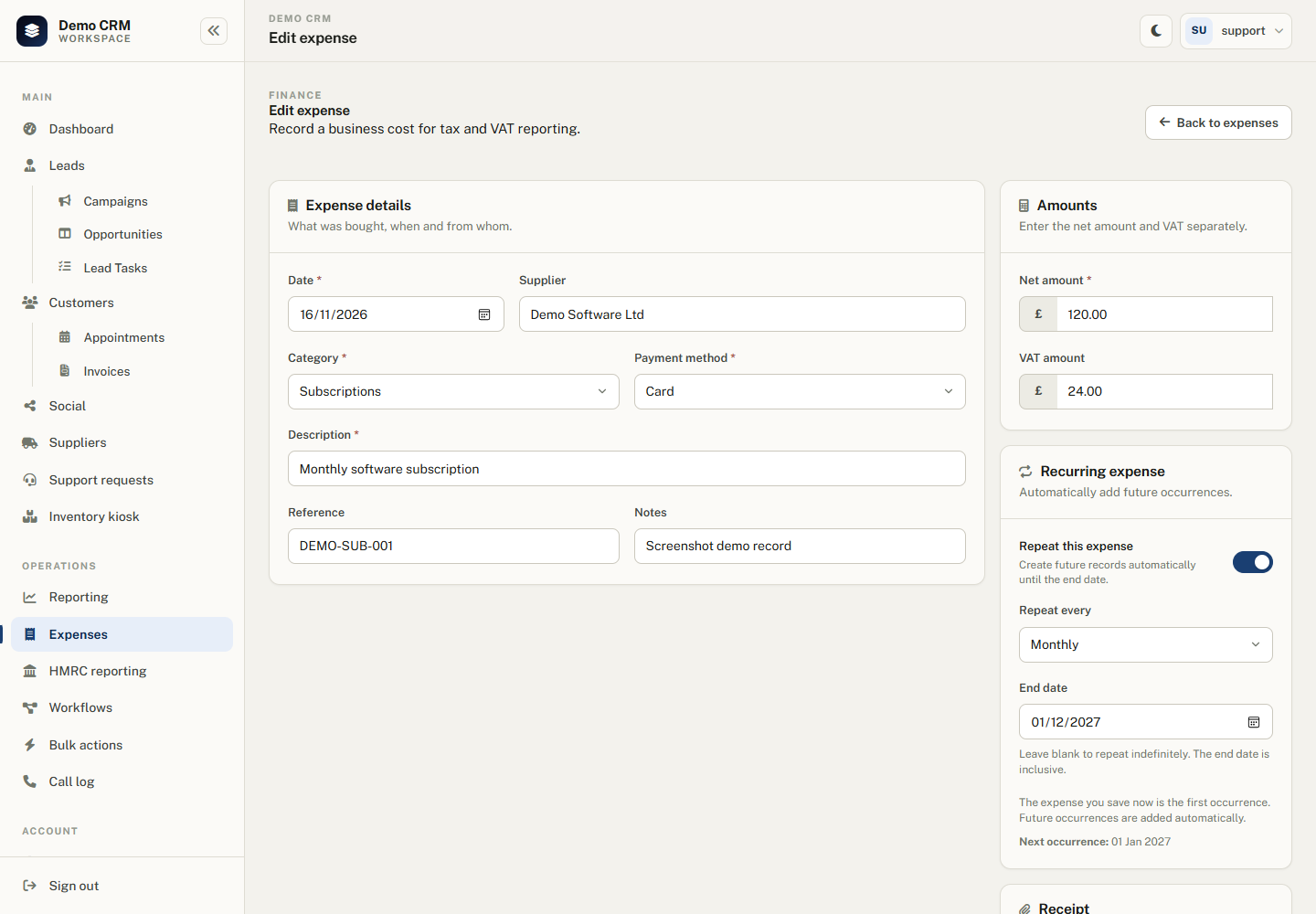
On the expense form, turn on Repeat this expense, choose how often it should repeat, and optionally set an end date.
| Field | Description |
|---|---|
| Repeat every | Weekly, monthly, quarterly or yearly. |
| End date | The last date an occurrence should be created. The end date is inclusive. Leave it blank to keep repeating until you turn recurrence off. |
The expense you save is the first occurrence. Future occurrences copy the supplier, category, payment method, description, reference, notes, net amount, VAT amount and tax flags from the recurring expense. Receipts are not copied, so attach the relevant receipt to each occurrence if you need one.
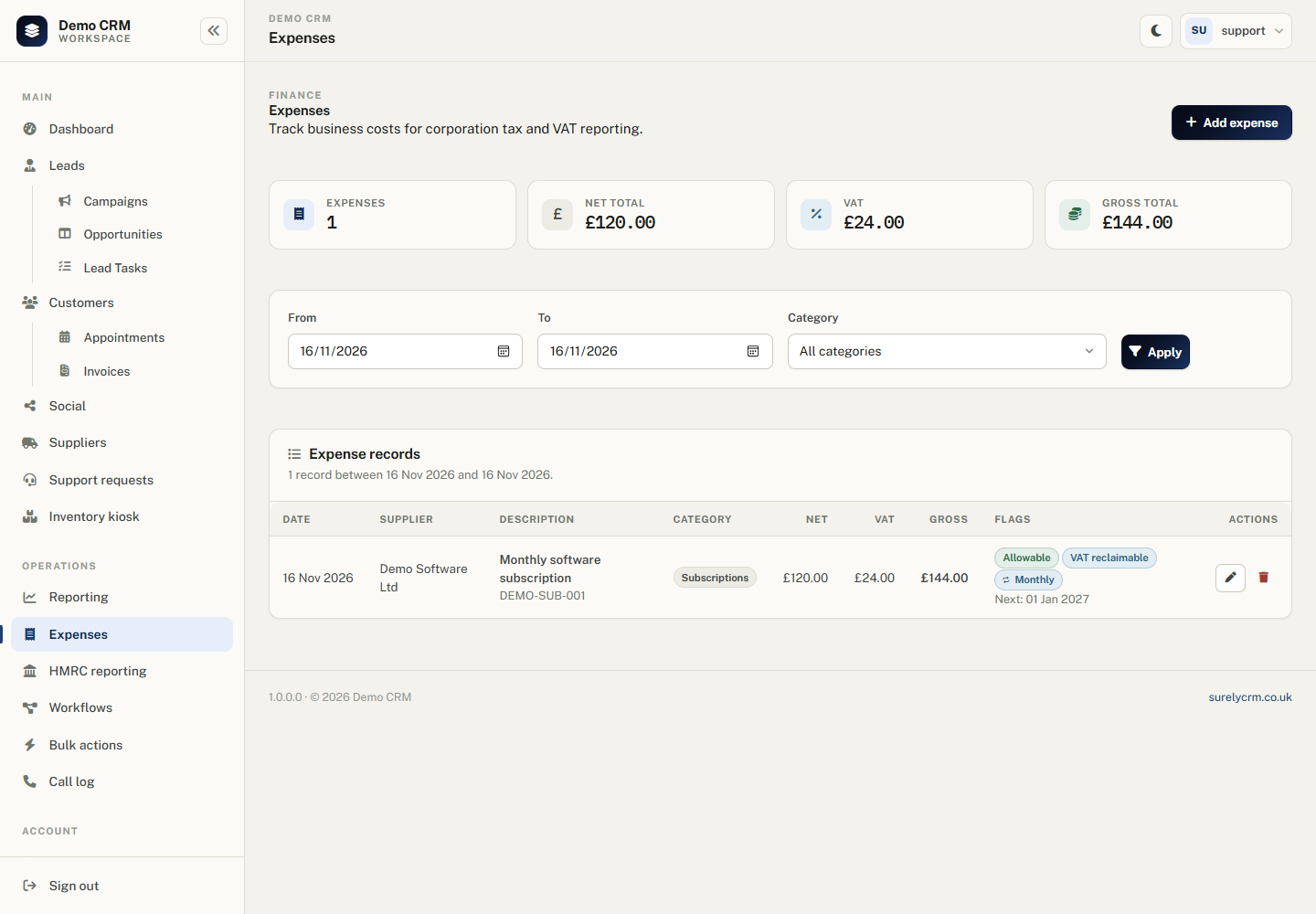
Future records are created in the background after their date arrives. The expense list marks the recurring template with its frequency and next due date, and marks automatically created records as Recurring. Generated records are ordinary expenses, so you can edit or delete an individual occurrence without changing the rest of the schedule.
Changing or stopping a recurring expense: edit the original recurring expense. The next future occurrence uses the updated details. Turn off Repeat this expense to stop creating new records; expenses already created are kept.
Automated generation uses the background engine. Keep BackgroundEngine enabled in Administration > Feature Toggles if you rely on recurring expenses.
Receipts and photos
Each expense can have one optional receipt attached. On the expense form, choose Upload receipt or take a photo. On desktop this opens the normal file picker; on a phone, your browser can offer the camera or photo library.
- Accepted formats: images (JPG, PNG, HEIC and other image types) and PDF.
- Maximum size: 10 MB.
- When a receipt exists, a paperclip action is shown on the expense list.
- Edit the expense to view the current receipt, replace it, or remove it.
Tip: Photograph paper receipts as soon as you receive them. Attach the image to the expense so the evidence stays with the accounting record.
Finding and managing expenses
The Expenses list can be filtered by date range and category. The summary cards show the number of expenses, net total, VAT total and gross total for the current filter. Use the pencil action to edit an expense or the bin action to delete it. Deleting an expense removes it from future reports.
Related guides
- HMRC reporting — corporation tax and VAT summaries.
- Invoicing — customer income that feeds the turnover calculation.
- Reporting & Views — other reporting and export tools.